

Merchant dashboard guide
This guide walks through the dashboard screen by screen, in the order you actually use them. Every screenshot comes from the real dashboard running on mock data, so the figures and names are not those of a real merchant.
Open the merchant dashboardStep 1
Sign in
The dashboard uses a username, not an email address. The shape of the username decides who you sign in as.
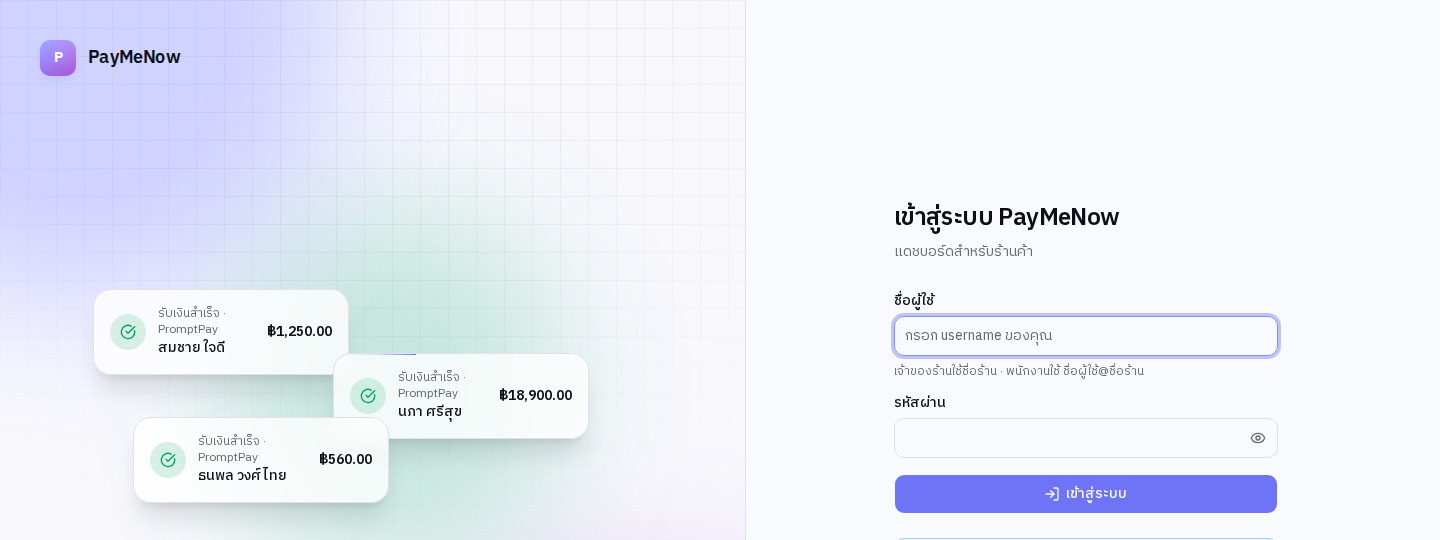
- Open the merchant dashboard and enter your username.
- A shop owner signs in with the shop name alone, for example demo.
- Staff sign in as username@shopname, for example staff@demo.
- Enter the password and press sign in.
- If the account has two-factor authentication enabled, a six-digit code is requested next; the field submits itself once all six digits are in.
Tip: Once you are in, the session extends itself while you work and warns you before it expires. If you leave it idle for a long time, sign in again.
Step 2
The overview screen
The first screen after signing in gathers the numbers you look at daily and refreshes itself as new payments arrive.
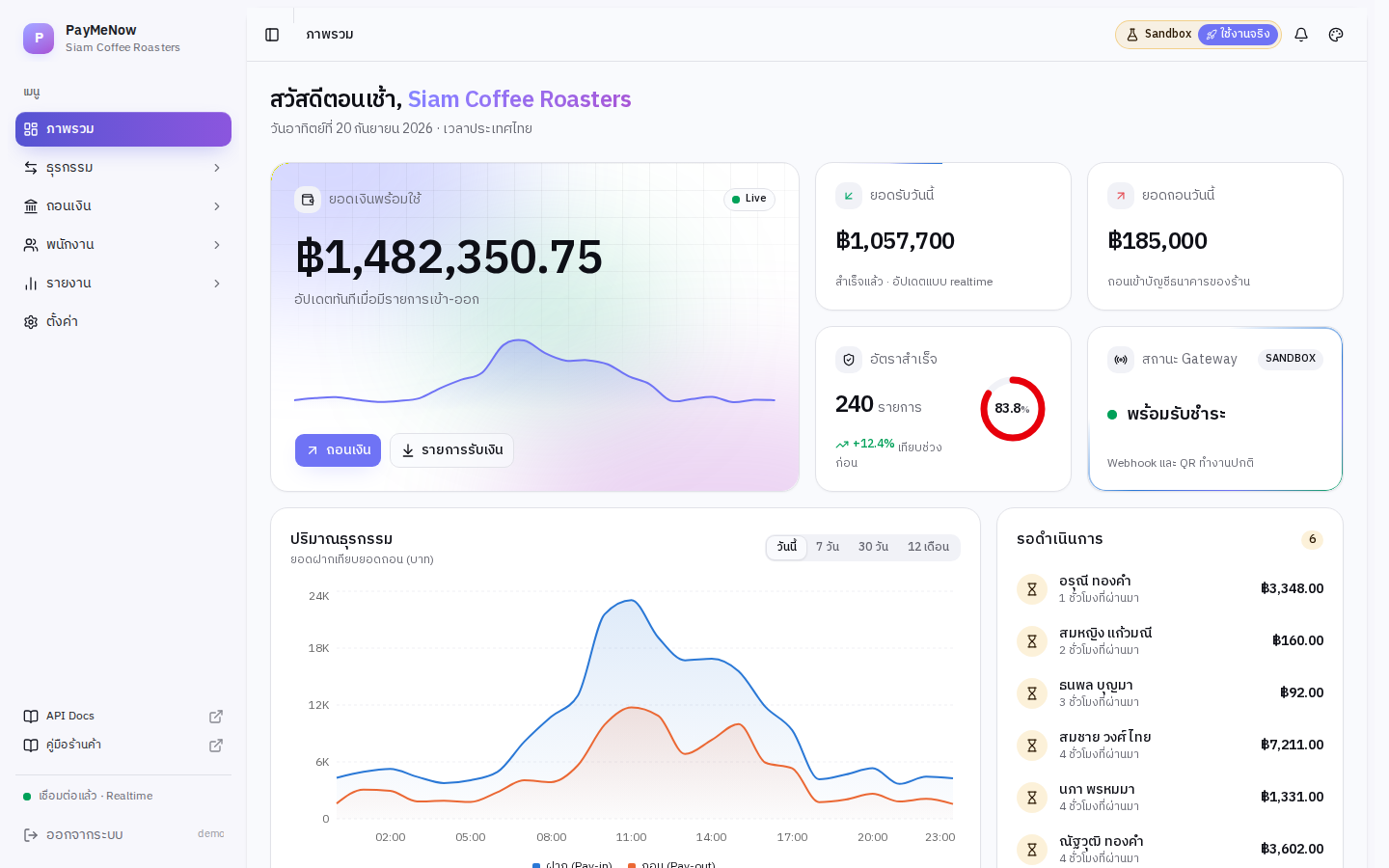
- The available balance card is what you can withdraw; the Live dot shows the real-time connection is up.
- Today's received and today's withdrawn summarise the day in Thai time.
- The volume chart switches between today, 7 days, 30 days and 12 months.
- The pending list on the right holds payments that have not settled yet; select one to see its details.
- The bottom of the menu shows the real-time connection status — if it says disconnected, refresh the page.
Step 3
Pay-ins
Transactions › Pay-in lists every payment your customers made by scanning a PromptPay QR.
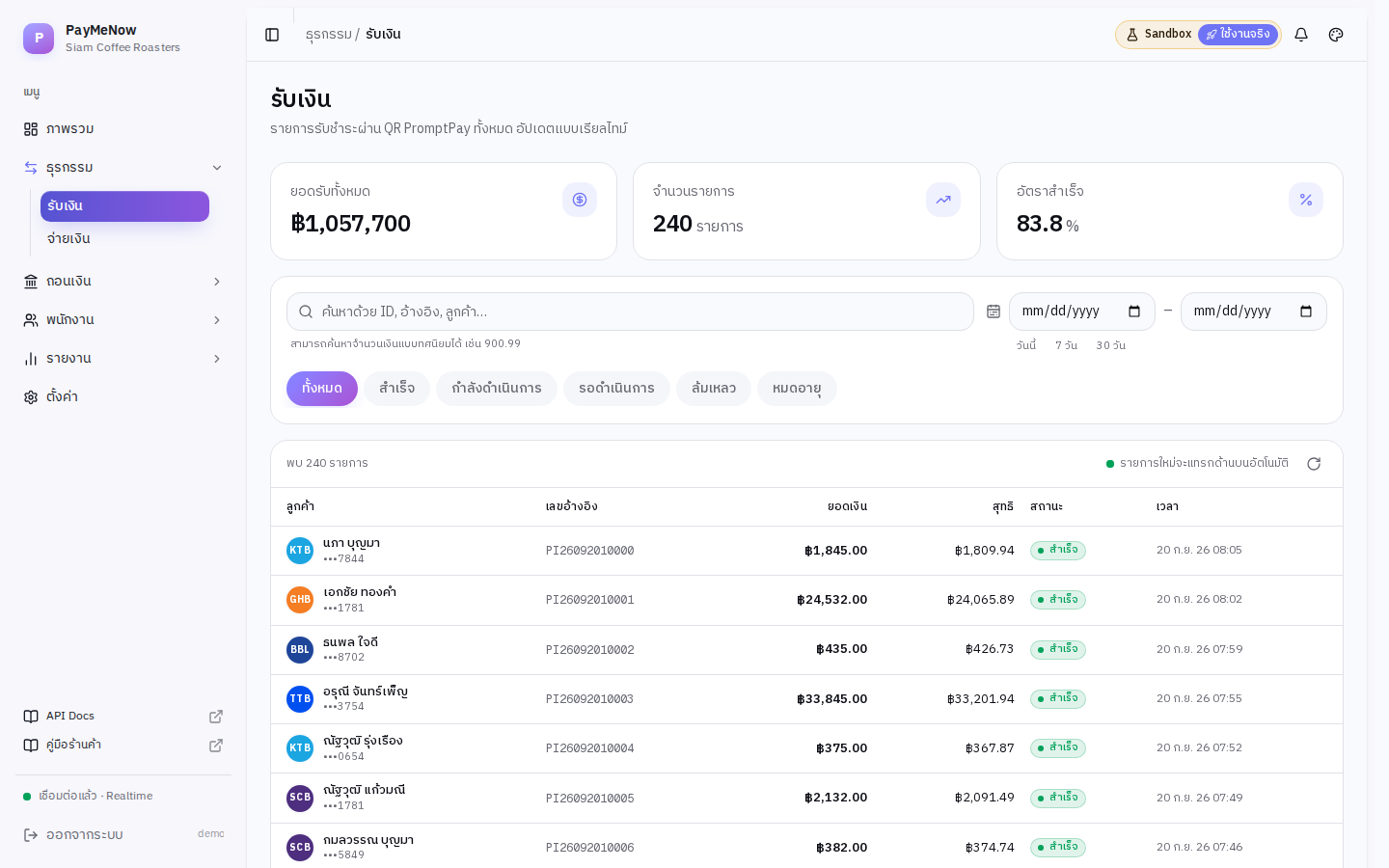
- The cards at the top summarise the filtered range: total received, number of payments and success rate.
- Search accepts a reference, a customer name or an amount with decimals, for example 900.99.
- The status chips filter by all, successful, processing, pending, failed and expired.
- The date range has shortcuts for today, 7 days and 30 days, or pick both dates yourself.
- Select a row to open its details: the payment itself, the payer's information and the webhook delivery history.
Tip: Filters live in the URL, so you can copy the link and a colleague opens exactly the same view.
Step 4
Payouts
Transactions › Pay-out lists the transfers the platform sent to recipient accounts on your API's instruction.
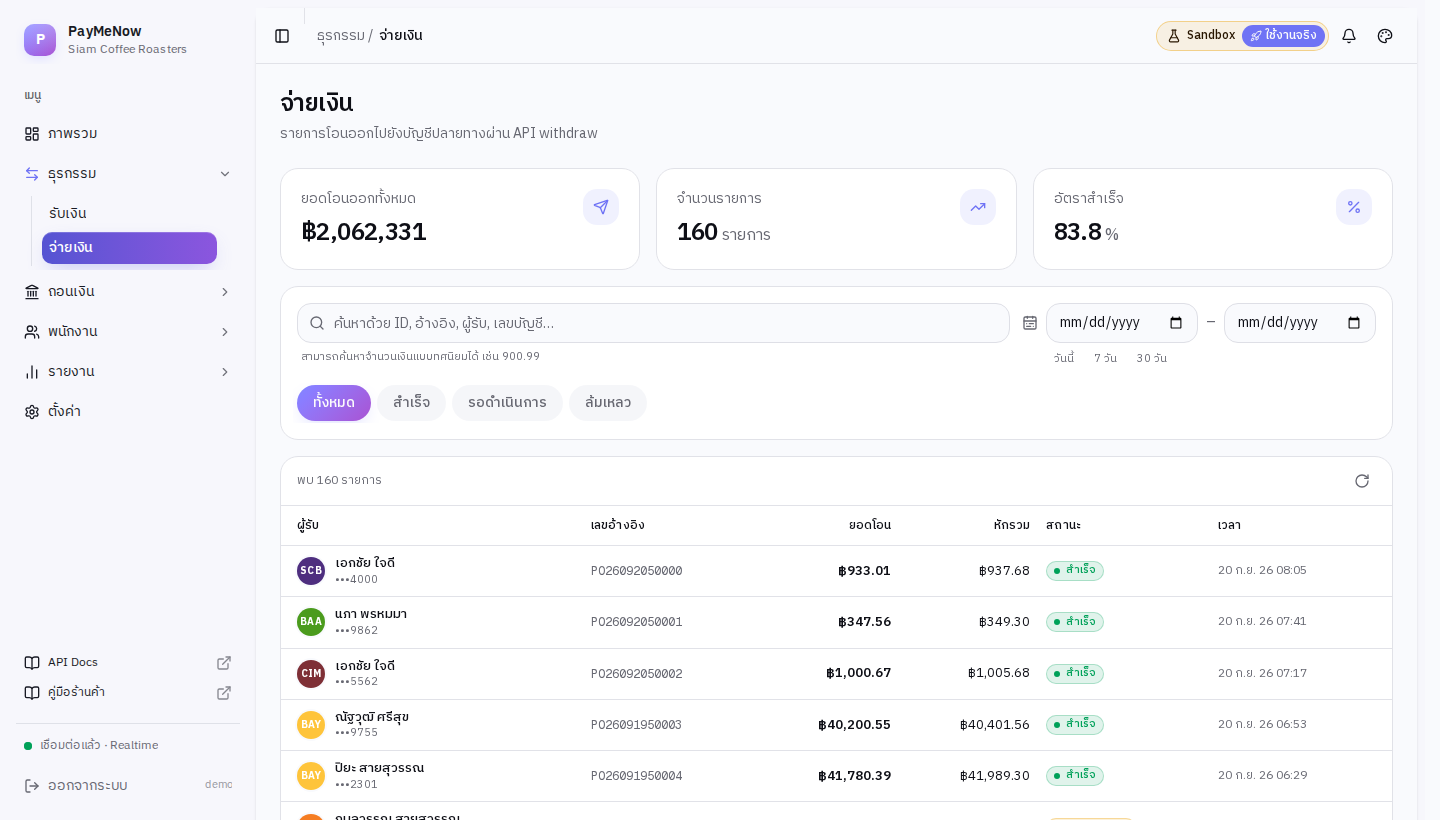
- The same search and filters as the pay-in screen.
- Select a row to see the recipient account and the webhook deliveries for that payout.
- Payout statuses are pending, successful and failed.
Step 5
Withdraw your balance
Withdraw › Withdraw moves your merchant balance to a registered bank account. This step always requires a 2FA code.
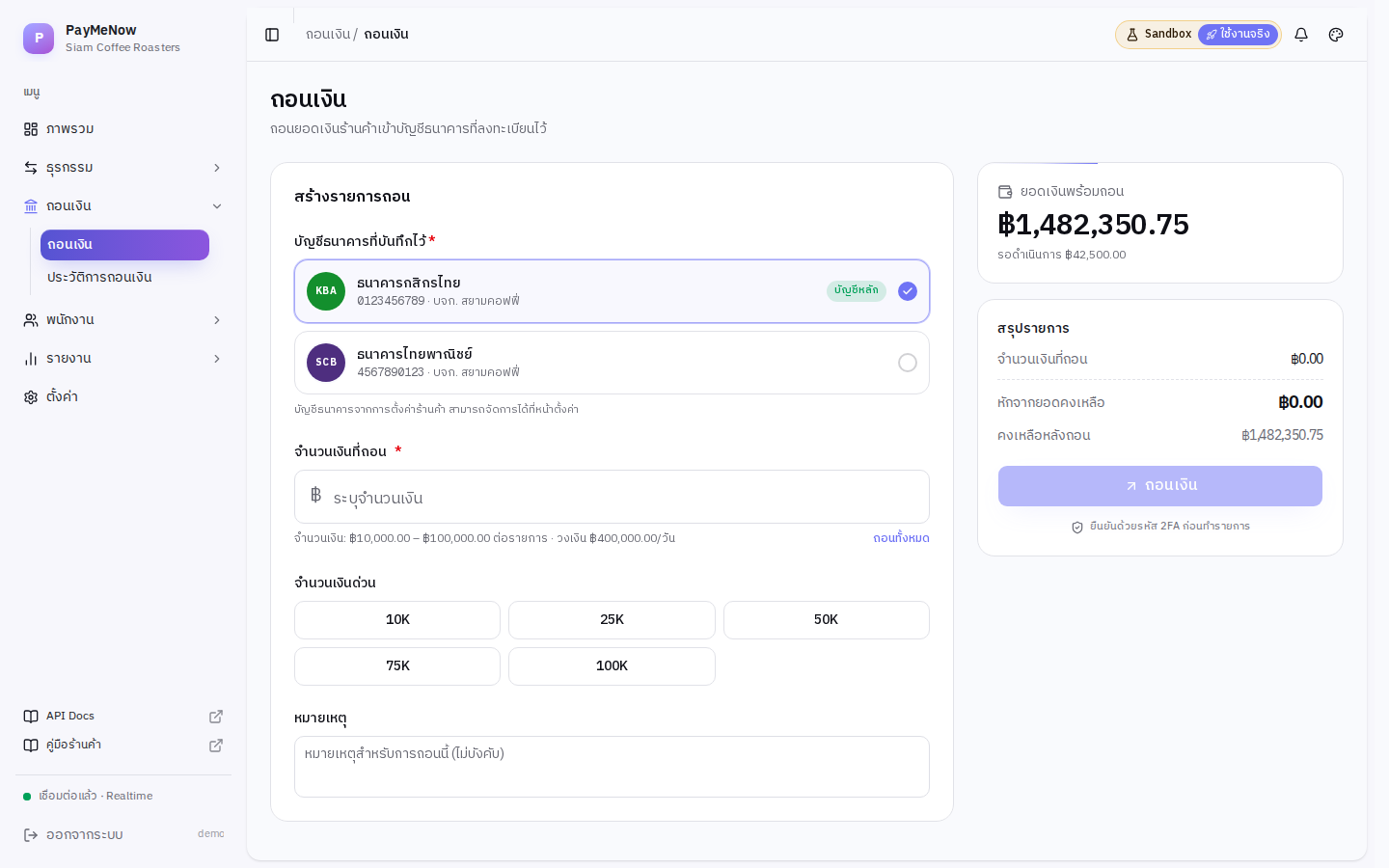
- Pick the destination bank account; the primary account is preselected.
- Enter an amount or use a quick-amount button. The per-transaction minimum, maximum and daily limit are shown under the field.
- The summary panel calculates what will be deducted from your balance and what will be left.
- Add a note if you want, then press withdraw.
- Enter the six-digit one-time code to confirm; only then is the request submitted.
Careful: If two-factor authentication is not enabled on your account, the withdraw button stays locked. Turn 2FA on under Settings › Security first.
Step 6
Withdrawal history
Withdraw › History keeps every withdrawal request together with who asked for it.
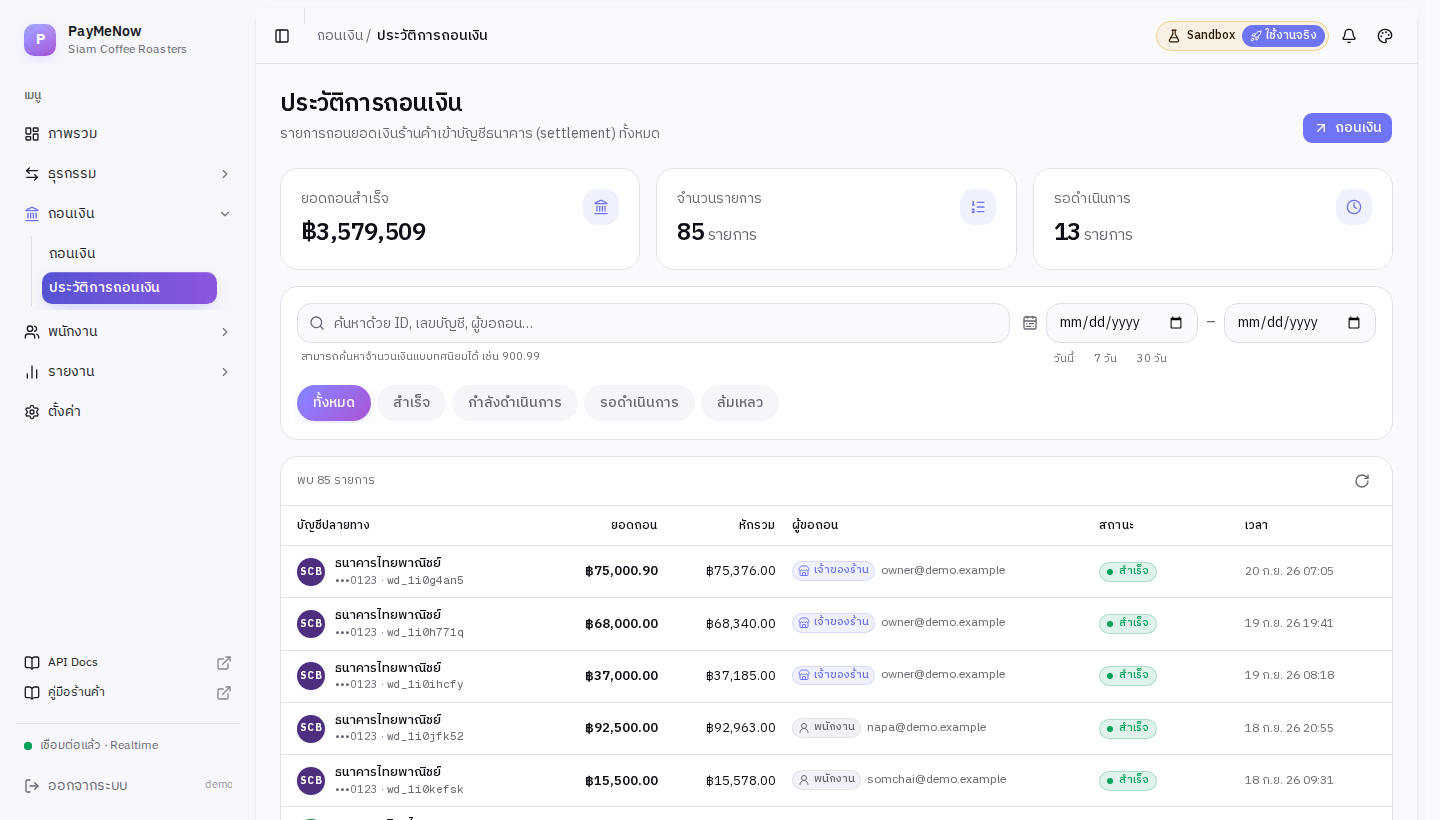
- Filter by status and date range as on the other list screens.
- The requester column says whether the owner or a particular staff member submitted it.
- Select a row for the full detail of that request.
Step 7
Reports and downloads
The reports menu holds the summary, the transaction history, the settlement statement, refunds, an analytics view and a download page.
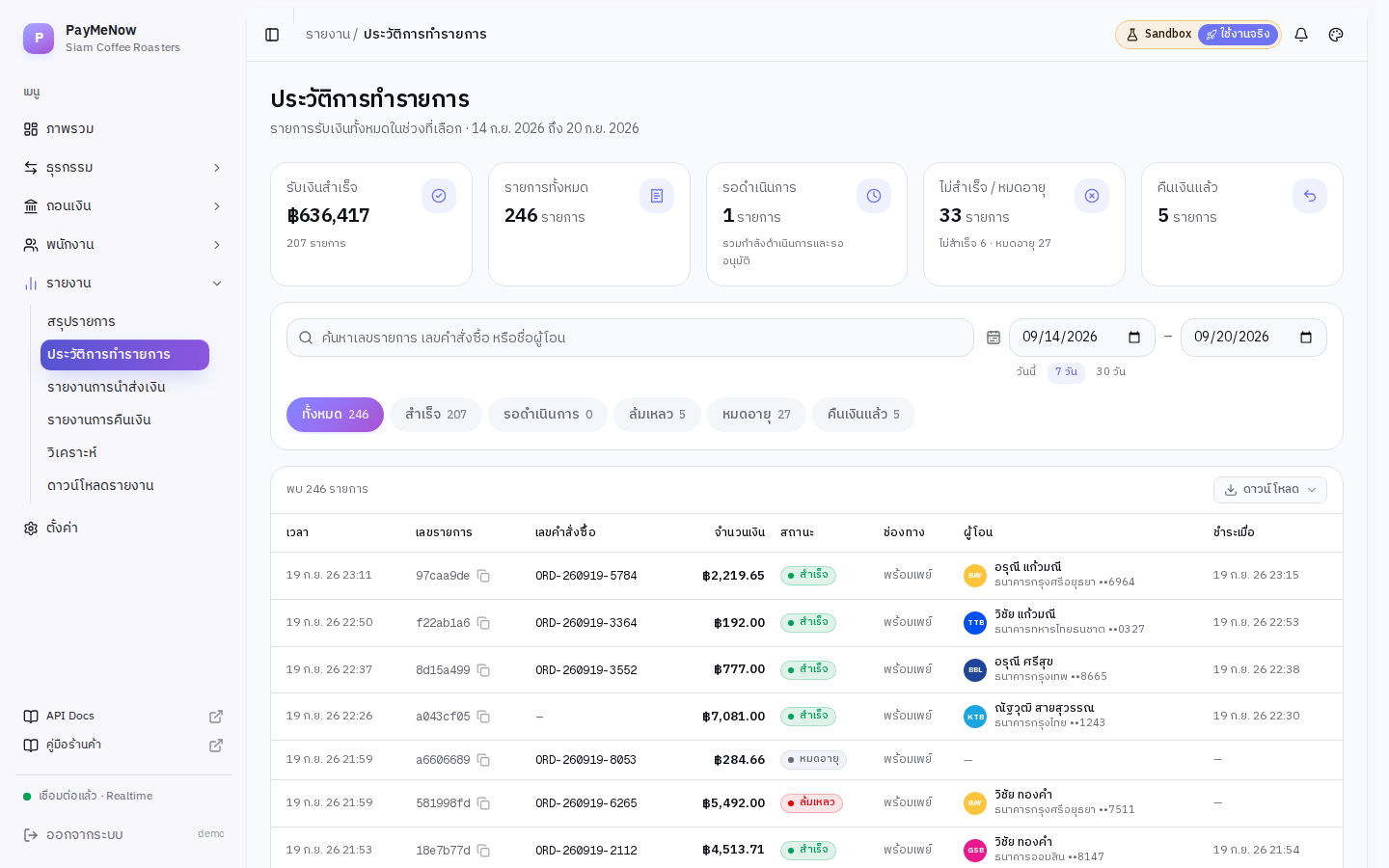
- Choose a date range with the today / 7 days / 30 days shortcuts, or set it yourself.
- The status chips carry the count for each status.
- Use the download button above the table to save the view as CSV or Excel.
- The download page is for pulling one file over a longer date range in a single go.
Tip: If you want your accounting system or ERP to fetch reports by itself, use the Merchant Reports API instead of downloading by hand.
Step 8
Exporting a report file
Reports › Download builds a file for a date range you choose.
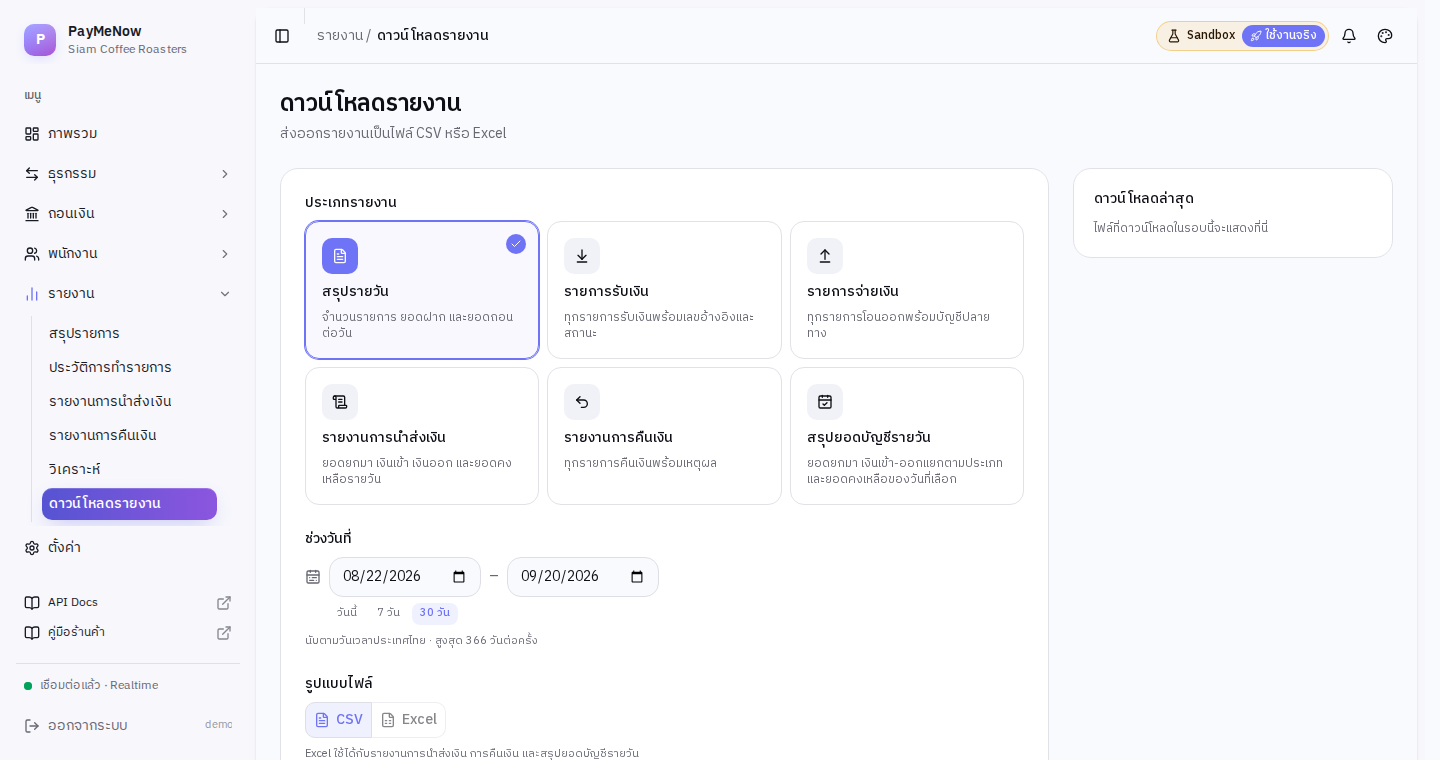
- Pick the date range.
- Choose CSV or Excel.
- Press download; the file is saved straight to your computer.
Step 9
Settings: API keys, IP whitelist and the daily summary webhook
Settings is split into General, Shop profile, Bank accounts, Security and API. The API tab is the one your technical team uses most.
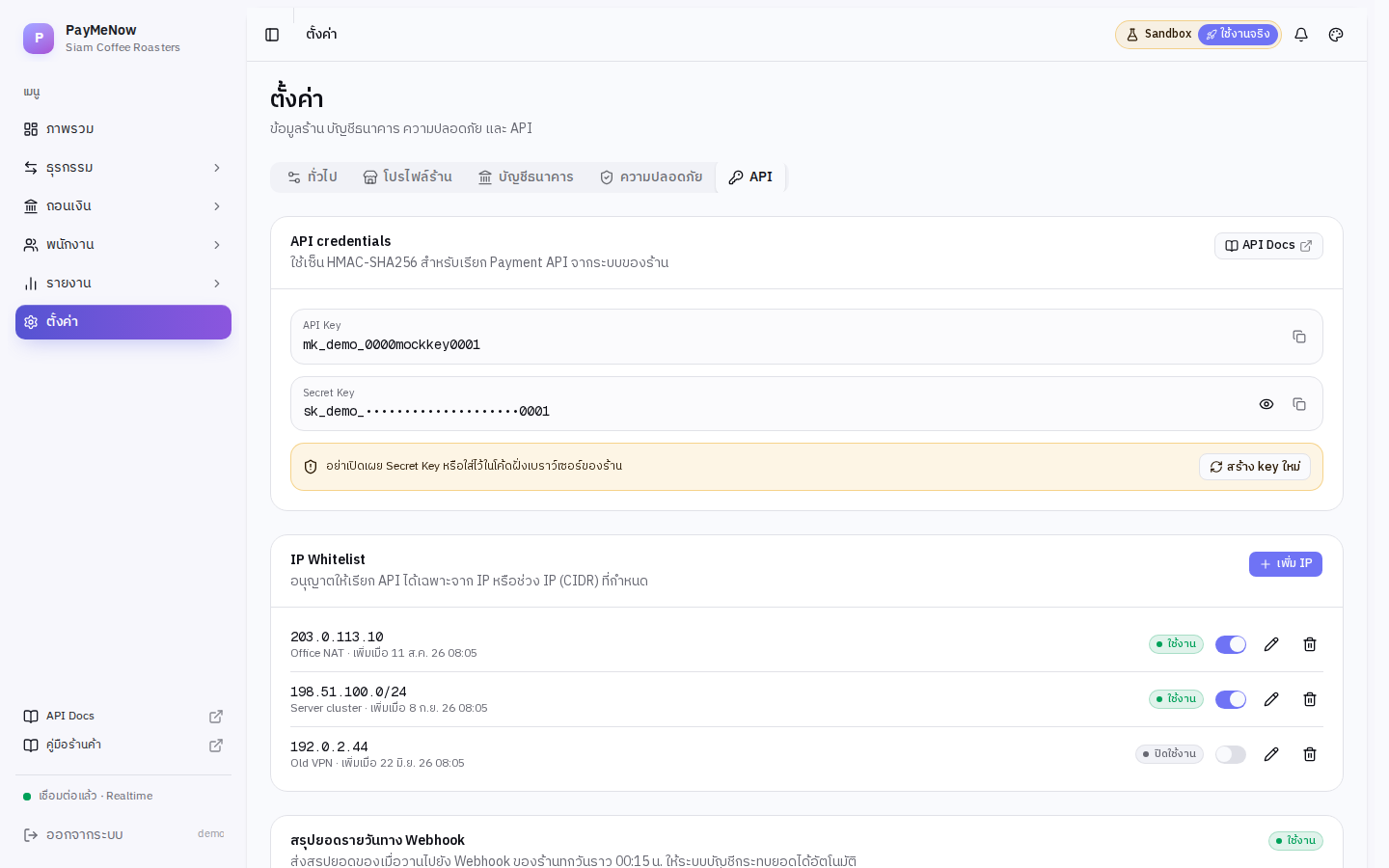
- API credentials shows the API key and the secret key. The secret is hidden — use the eye icon to reveal it and the copy icon to copy it.
- Regenerate the keys if you suspect one has leaked; remember to update your own systems afterwards.
- IP Whitelist restricts which addresses or CIDR ranges may call the API. Add entries, and use the switch to disable one temporarily.
- The daily summary webhook section sets the URL that receives yesterday's summary, and has a test-send button to try it before you rely on it.
Careful: After regenerating, the gateway keeps the previous key cached for a short while, so allow a few minutes before the old one stops working. Never put the secret key in browser-side code.
Step 10
Staff and permissions
The staff menu creates logins for your team, with permissions granted one at a time.
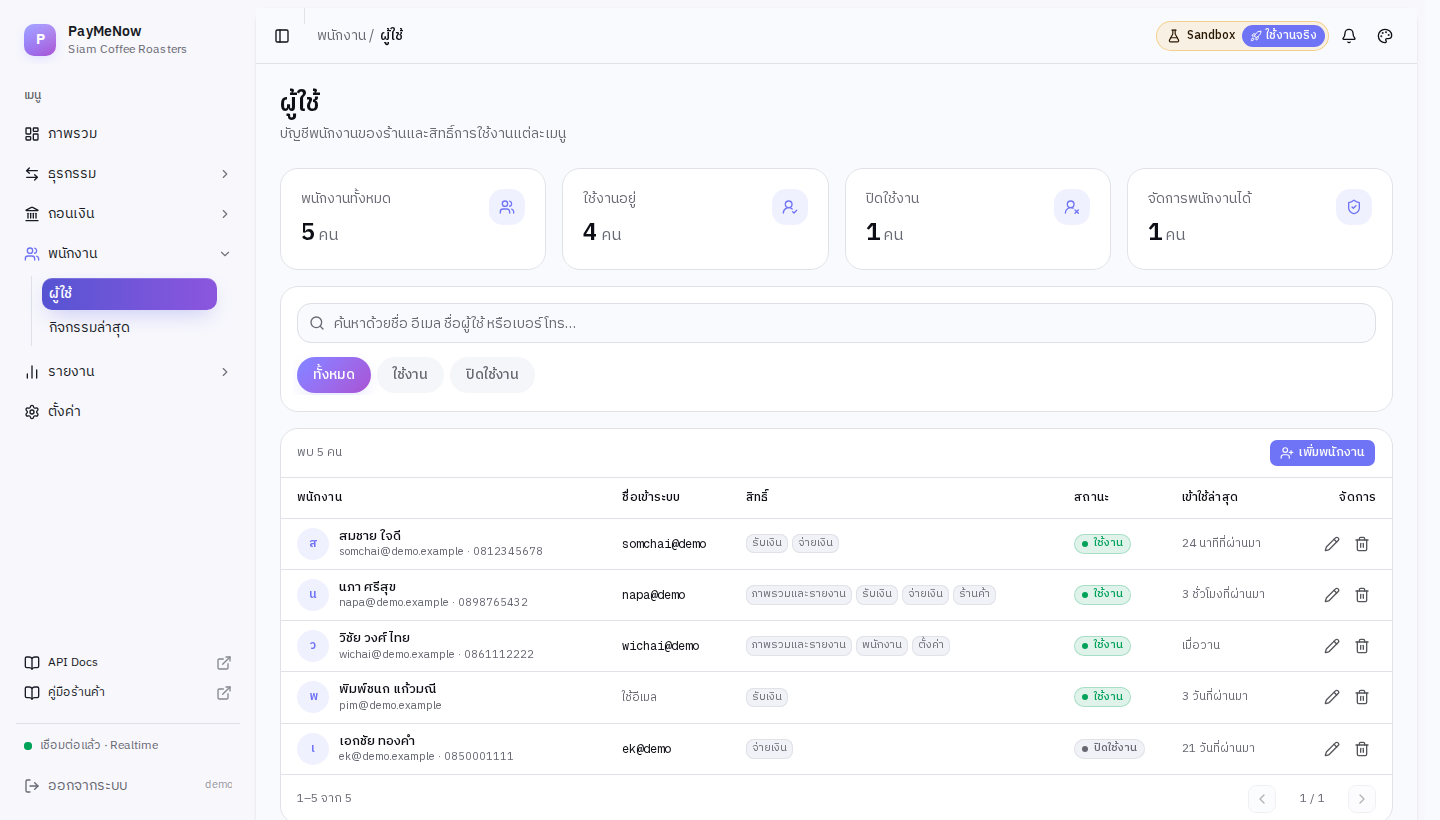
- Press add staff and fill in the name, username and an initial password.
- Tick the permissions they need: viewing pay-ins, viewing payouts, withdrawing, managing staff, changing settings.
- To let someone reach the withdraw screen, the merchant permission group has to be granted as well.
- Staff sign in with username@shopname.
- Turn the status switch off to suspend an account without deleting it.
Step 11
Staff activity log
Staff › Activity records who did what, and when.
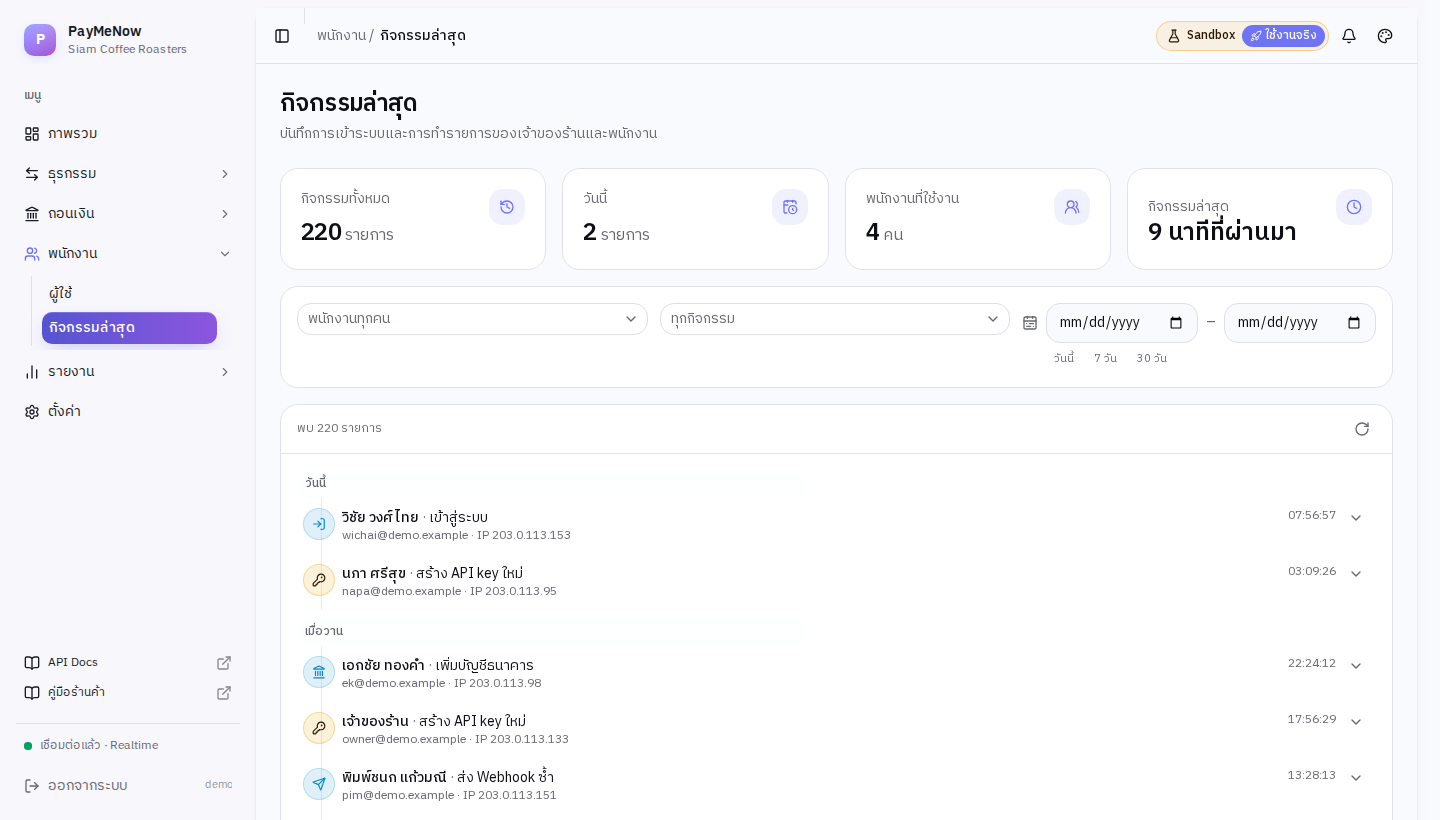
- Filter by staff member, action type and date range.
- Use it to answer questions about a withdrawal or a settings change after the fact.
Step 12
Language, theme and menu layout
The right-most button in the top bar opens the appearance menu. These settings belong to each user individually.
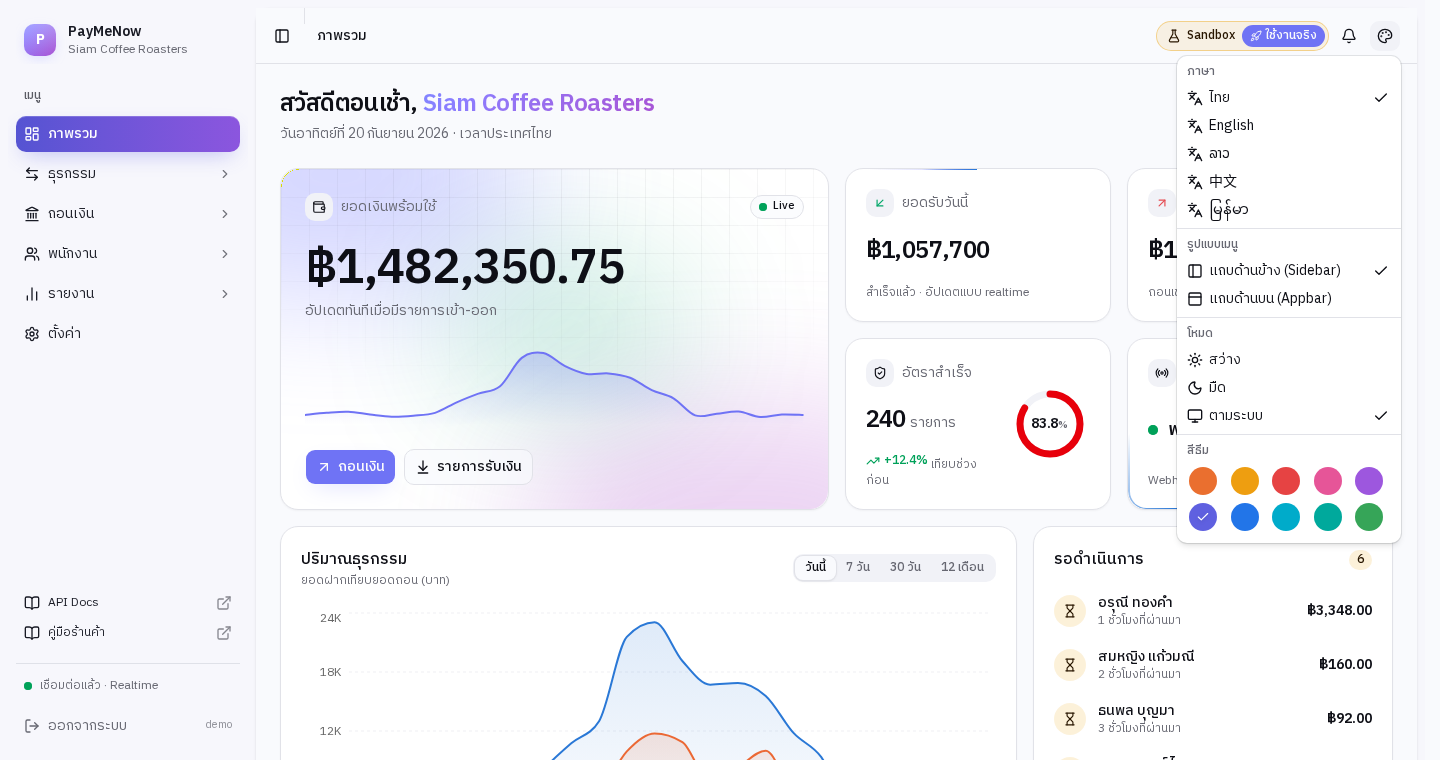
- Language: Thai, English, Lao, Chinese or Burmese.
- Menu layout: a sidebar or a top bar. On small screens the sidebar becomes a drawer.
- Mode: light, dark or follow the operating system.
- Accent colour: ten options — handy for telling a test account apart from the live one.
Tip: The Lao, Chinese and Burmese translations are first drafts. If a phrase reads wrong, tell the support team.
Still stuck?
Message the support team on Telegram, or search the help centre for more articles.